Flutter is a great framework allowing you to create beautiful, responsive, pixel-perfect apps that look and behave the same on both Android, iOS and other platforms like Windows or Linux. With such a powerful tool at your fingertips it’s best to know what to look for when optimizing for best possible performance.

I have gathered 7 things that you can identify and fix in your application to make it the absolute best it can be. Different projects have different needs, that’s why I decided to compile most useful knowledge into 1 starting point for everyone that wants to take their optimization journey seriously
Keep in mind that I already wrote an article about application start-up performance so in this one I’ll be focusing on optimizing only the runtime.
Here’s a quick rundown of what we’ll go over:
- Opacities
- Navigation
- Image decoding issues
- App-as-a-tree design approach
- Constant constructors
- Render layer saving
- Full screen overlays
- A little bonus
So without further ado, let’s jump into first topic.
- Don’t miss opacities
While opacities are useful we cannot miss their actual purpose — to create semi-transparency effects. Not to render unnecessary invisible elements on screen.
I have seen time and again using dynamic widget overlays or just dynamic screens using the opacity(0) or withOpacity(0) to hide certain on-screen elements. This approach — seemingly harmless — can cause lots of stress on device’s CPU via Flutter’s raster thread.
The raster thread takes the layer tree and displays it by talking to the GPU (graphic processing unit). You cannot directly access the raster thread or its data but, if this thread is slow, it’s a result of something you’ve done in the Dart code. Skia and Impeller, the graphics libraries, run on this thread. (…) Note that while the raster thread rasterizes for the GPU, the thread itself runs on the CPU.
There is already a well-documented example of FlutterFolio app. In their case simply changing auto-applying dynamic opacity from
AnimatedContainer(duration: Times.slow,
  color: Colors.black.withOpacity(overlayOpacity)),
to
if (overlayOpacity > 0)
  AnimatedContainer(duration: Times.slow,
      color: Colors.black.withOpacity(overlayOpacity))
made an astonishing 20% improvement on the raster thread and removed potentially 50% janky frames (frames outside correct frame timings, e.g. 16ms for 60hz displays). Just by correctly applying opacity to a single widget. You can read more about their story in this article.
To see first-hand how opacity affects your application you should use debugDisableOpacityLayers to run the app in a mode when all opacity layers are not being painted.
- Navigation stack — out of sight, still using CPU
This was a rather curious find, but also potentially the biggest improvement you can find in your project. To see what I’m talking about you can launch my sample app or simply create a starter flutter project yourself. In MyHomePage create a method like this and add it to the initState()
 void autoIncrement() async {
    while (true) {
      await Future.delayed(Duration(seconds: 2), () {
        setState(() {
          _counter++;
          print('Counter incremented to $_counter');
        });
      });
    }
  }
This method will keep incrementing the on-screen counter every 2 seconds and notify us about it in debug console.
Now create a basic secondary screen and navigate to it from the first. In debug console you can still see that the counter is being updated. What’s worse, in flutter profiler you can observe that the the app is still re-drawing the counter component which takes time and CPU power away from what’s currently on the screen.
To inspect this, while the app is connected to debugger, launch Flutter performance page (in vsCode by pressing ctrl + shift + p and typing “performance”, find the option from dropdown). Then navigate to your second screen. When you look at “Rebuild stats” field you can see that MyhomePage is still being actively rebuilt.
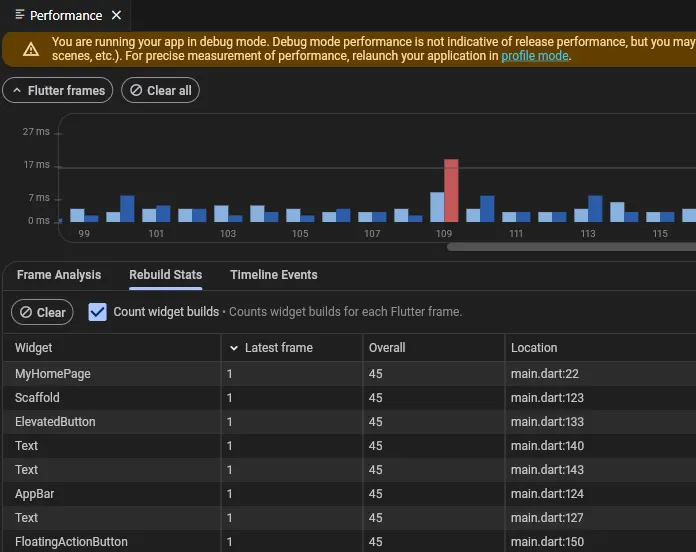
However silly the example with endless loop causing a setState to be triggered, it’s just to show that this is happening. Regardless of how amazing the architecture and state management of your app may be — if your screen has lots of state providers, state observers, active streams or other dynamic elements it just might be your invisible culprit .
This of course is a very problematic behavior from performance perspective as it may cause visual lags in places that do not cause them and actively hide the core problem you might have.
There are 3 ways out of this:
- Visibility awareness
- Change in navigation approach
- Further granularity of your state providers
There was a very interesting discussion on StackOverflow a while back about this very topic — how can I make my screen aware if it’s being currently visible. While it’s not the route I’d necessarily recommend it does solve problems if you wrap all your widgets inside build() in a boolean for page visibility and if it’s not visible return just SizedBox.shrink
Second option would be to deeply think about your navigation and whether it’s really necessary to keep all these screens in Navigator stack, or whether to create a more custom approach with replacement routes and hard-coded manual navigation.
Third option is definitely the most difficult, but also the most rewarding. You really need to dig deep and try to find imperfections in business layer of your app. Maybe your screens share too much logic between data/state providers. Maybe there are some unnecessary operations you forgot to dispose()
The possibilities are as endless as they are complex and depend purely on your project structure.
Performance gains from observing and modifying navigation may be as huge as 50% improvement in both raster and UI threads responsible for calculating and placing elements on screen.
- Network image decoding — a silent performance killer
There is a deep flaw in the way Flutter handles image decoding. If you’re using lots of images in your app you should already be familiar with the “highlight oversized images” functionality. This analyzes images used in app and if they are cached/decoded as larger than actually displayed it flips them vertically and inverts colors in the picture.
This is a very important performance debugging tool as large images not only require more CPU power to decode, they also require more RAM to be cached than using size-appropriate images.
The most common solution to this is to use dynamic CDN or Content Delivery Network that delivers correctly scaled image for the device requesting it. But if you’re reading this article you’re most likely looking for a different, more universal solution. Luckily there is one.
To test it yourself you can run my demo project or in your own project create a widget like this
class OversizedImage extends StatelessWidget {
  final bool useOptimized;
  const OversizedImage({super.key, required this.useOptimized});
  @override
  Widget build(BuildContext context) => SizedBox(
    height: 200,
    width: 200,
    child:
        useOptimized
            ? SizedBox.expand(
              child: FittedBox(
                child: Image.network(
                  'https://storage.googleapis.com/cms-storage-bucket/acb0587990b4e7890b95.png',
                ),
              ),
            )
            : Image.network(
              'https://storage.googleapis.com/cms-storage-bucket/acb0587990b4e7890b95.png',
            ),
  );
}
Use this Widget anywhere as
OversizedImage(useOptimized: false),This will create a box of size 200x200 and pass unoptimized image into that box. You will see an inverted Dash

as well as a notification in debug console about image being too large when considered it’s display boundaries.

Now, when you change param to true you will notice that both the inversion and console warnings are gone. Dash is, again, happily teaching people about Flutter.

Regardless of the amount and size of images in your app this is a sure-fire way to boost your app’s performance by lowering it’s CPU and RAM usage.
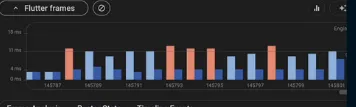
In my case it actually resolved all missed frame times (expected 11ms for 90hz display). Here’s the comparison of the same screen in one of my applications when scrolling through the app.
Before using optimized images:
After using optimized images:
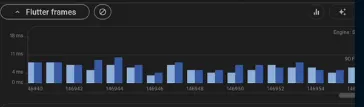
This works because FittedBox object actively modifies the scale of its child to its parent, and since its parent is a SizedBox.expand it ensures that the image is perfectly scaled to whatever container you want to use.
This is something you definitely want to incorporate into your project as it can give massive benefit for the cost of little and easy to spot refractoring. Especially since github issue for this is open for 2 years now and there seems to be no activity to resolve it in the [Image.network](https://github.com/flutter/flutter/issues/132976) implementation.
4. Your app is a tree — an exercise in imagination
Have you ever considered why it’s called a widget tree? Many people take it at face value as just another Flutter related idiom and don’t think much about it. But thinking visually might just be what you need to make your app better. Imagine an actual tree and try to apply app layout logic to it:
                  ||
        [SCREEN]-----[ROW]----------------[WIDGET]
           ||            |-----------------[WIDGET]
           ||            |-----------------[WIDGET]
           ||            |-----------------[WIDGET]
           ||
           ||
In this example the tree trunk is your screen, your row is a branch holding its leaves — widgets. This follows the same exact logic as your app should — Trunk should be immovable, it’s just there to provide support and a place for branches. Branches generally don’t move either, they are there to hold leaves. Finally the leaves, pretty, fluttering ;) in the wind, reactive and responsive to their surroundings.
That doesn’t mean that stateful widgets are intrinsically bad. Did you know that a StatefulWidget is just as lightweight as StatelessWidget if it doesn’t use setState ? Because for me and for many people I spoke with that was quite a surprise. To quote Flutter’s documentation:
There are two primary categories of StatefulWidgets.
The first is one which allocates resources in State.initState and disposes of them in State.dispose, but which does not depend on InheritedWidgets or call State.setState. Such widgets are commonly used at the root of an application or page, and communicate with subwidgets via ChangeNotifiers, Streams, or other such objects. Stateful widgets following such a pattern are relatively cheap (in terms of CPU and GPU cycles), because they are built once then never update. They can, therefore, have somewhat complicated and deep build methods.
The second category is widgets that use State.setState or depend on InheritedWidgets. These will typically rebuild many times during the application’s lifetime, and it is therefore important to minimize the impact of rebuilding such a widget.
With this in mind taking a good long look at the structure of your screens might unveil some really intense performance gains. Try to really visualize your tree. You can of course use widget inspector and flutter performance inspector to help you visualize elements that could be pushed farther away from your trunk to improve performance.
- Was Istanbul, now it’s CONSTantinople
To paraphrase a popular song, but it’s actually a very valid and often very overlooked paradigm in Flutter community. People and the IDE of your choice will automatically remind you to use const constructors whenever possible. But why is that important and why should you consider changing your approach to prefer constant widgets?
What you might not know is that const widget is equivalent to caching a widget. Constant widgets are deterministic, meaning that the result of calculations leading to its creation will always be the same — that allows to skip those calculations. Once widget is created the end result is stored and reused instead of re-calculating the widget. At risk of quoting too much documentation:
When trying to create a reusable piece of UI, prefer using a widget rather than a helper method. For example, if there was a function used to build a widget, a State.setState call would require Flutter to entirely rebuild the returned wrapping widget. If a Widget was used instead, Flutter would be able to efficiently re-render only those parts that really need to be updated. Even better, if the created widget is
const, Flutter would short-circuit most of the rebuild work.
As usual your mileage may vary, but keeping this in mind will definitely allow you to offload a bit of computational intensity off of the device’s CPU.
- Safe player checks saveLayer()
saveLayer() was a very surprising find for me, so I wanted to include it in this list. But I feel like Flutter documentation describes it best
Some Flutter code uses
saveLayer(), an expensive operation, to implement various visual effects in the UI. Even if your code doesn’t explicitly callsaveLayer(), other widgets or packages that you use might call it behind the scenes.Calling
saveLayer()(…) is particularly disruptive to rendering throughput.
So how can we track it down?
The
_saveLayer()_method triggers an event on the DevTools timeline; learn when your scene uses_saveLayer_by checking the_PerformanceOverlayLayer.checkerboardOffscreenLayers_switch in the DevTools Performance view.
What this setting does is it will display layers rendered to invisible (off-screen) bitmaps. This will help you better understand which (if any) parts of your app uses saveLayer() operation.
Monitoring this and reducing the usage to absolute minimum will help you keep your app’s performance under control.
- Full screen overlays — full screen gamble
This topic is connected to almost anything we talked about. Overlays themselves are not too bad on their own, they become big problems when they are animated, they cover animated elements or become fully transparent and not removed. This is just a small reminder — if you have overlays in your app, consider if they’re truly needed ;)
A little bonus
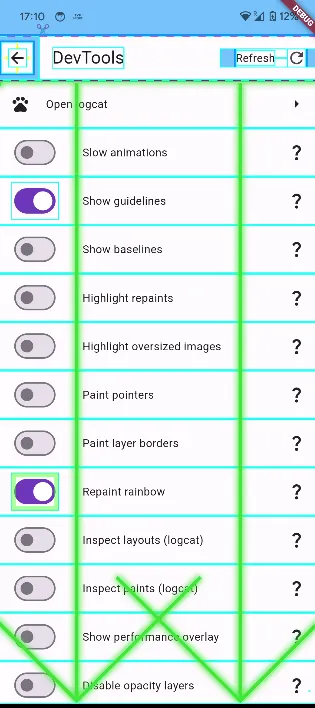
For the ones that read through all that and still want more. Also to offset the smallness of the previous point ;) I have made a Flutter plugin that can make performance debugging easier for you or your testers. It includes checks for all these issues mentioned here.
All the performance and widget inspecting tools that Flutter offers are available programmatically, dynamically from your app. Send your app to testers and let them enable performance graph, or play around with oversized images, disable opacities and all that goodness — right under your thumb.
For more information feel free to visit Flutter’s guide to best performance practices. Visit Flutter UI performance docs Check out more about Flutter devtools and widget inspection
Final thoughts
This article is an aggregate of issues I personally encountered. It’s a checklist of potential easy and sometimes not-so-easy wins when you’re looking for improvements to your application.
I hope this can be your entry point to explore more materials. All relevant links are in place so you can continue your own journey. If you liked this article consider following for more stories about mobile development :) or simply check out my other articles.